Workflow Ergonomics with AI
How AI streamlined my digital life
Build your own web server
My road to a more productive digital life started when I asked Claude Code (CC) to build a web server for me. It's called with-my-dashboards (WMD), a full-stack web application in a single file that has grown into the control panel for my whole desktop. Its generic core is on GitHub, for you to build your own on.
It started with reading. Long answers are hard to read inside CC, so I ask it to write them to a markdown file and open that in the browser. CC can do that by itself. What it can't choose is where the page turns up, and that's the problem WMD solved: I wanted every page in a known browser window, on the workspace I'm currently on.
It has grown since then. A "personal agent", one that goes off and does things for you while you're not there, isn't something I want. But I do like the convenience such agents promise, and WMD is a big part of how I get it. Anything I find myself doing a lot gets streamlined. Sometimes that's a small ~/bin command, sometimes a button or page in WMD, and sometimes just a rule CC follows for me, such as always backing up a file before changing it.
When I start WMD from the command line, it opens several browser windows, each with many tabs. I have three areas of focus at the moment, so I work across three workspaces. The one step I haven't been able to automate is moving each window to its workspace, but that only takes a few seconds.
About the videos: they're screen recordings, made when WMD was still called mdserve, and the text in them is small. Open a panel, then go full screen before you press play. YouTube picks the picture quality from the size of the player, so a small player gets a blurry picture.
Watch: WMD starting up
Everything lives on a tab
As you saw in the video, I start WMD from workspace 2. That's the workspace I use for control, and for anything that isn't a programming project. The idea is that WMD bootstraps the machine. After that, all the work I need to do is on a WMD browser tab somewhere.
When I want to work on WMD itself, I start a new CC session and ask it to read WMD.md, where its documentation lives. If you haven't worked with CC, or a similar coding agent such as Codex CLI or Gemini CLI: maintenance documents like this are written by the AI itself, from the conversations you have with it at its prompt.
Watch: Improving WMD with Claude Code
Browser tabs are just URLs. On startup WMD reads them from an EDN file, and that file gets changed during my conversations with CC.
A tab gets there in one of three ways:
- Always wanted. These are often complete programs, such as the dashboards for my projects, or ordinary sites such as Gmail and Slack, and they come back every time WMD starts.
- Asked for. I've asked CC to "put it up". This is usually markdown documentation.
- Opened by another tab. A button on another tab was pressed, usually to take a closer look at something, such as a log.
Each tab also gets a coloured dot as its icon, so I can tell at a glance what kind of tab it is. Ordinary websites keep their own icons, but they're just as much part of WMD: remembered and reopened with the rest, and CC can put one up in the correct window as easily as a document. The idea is to keep it down to one browser window per workspace.
Sessions
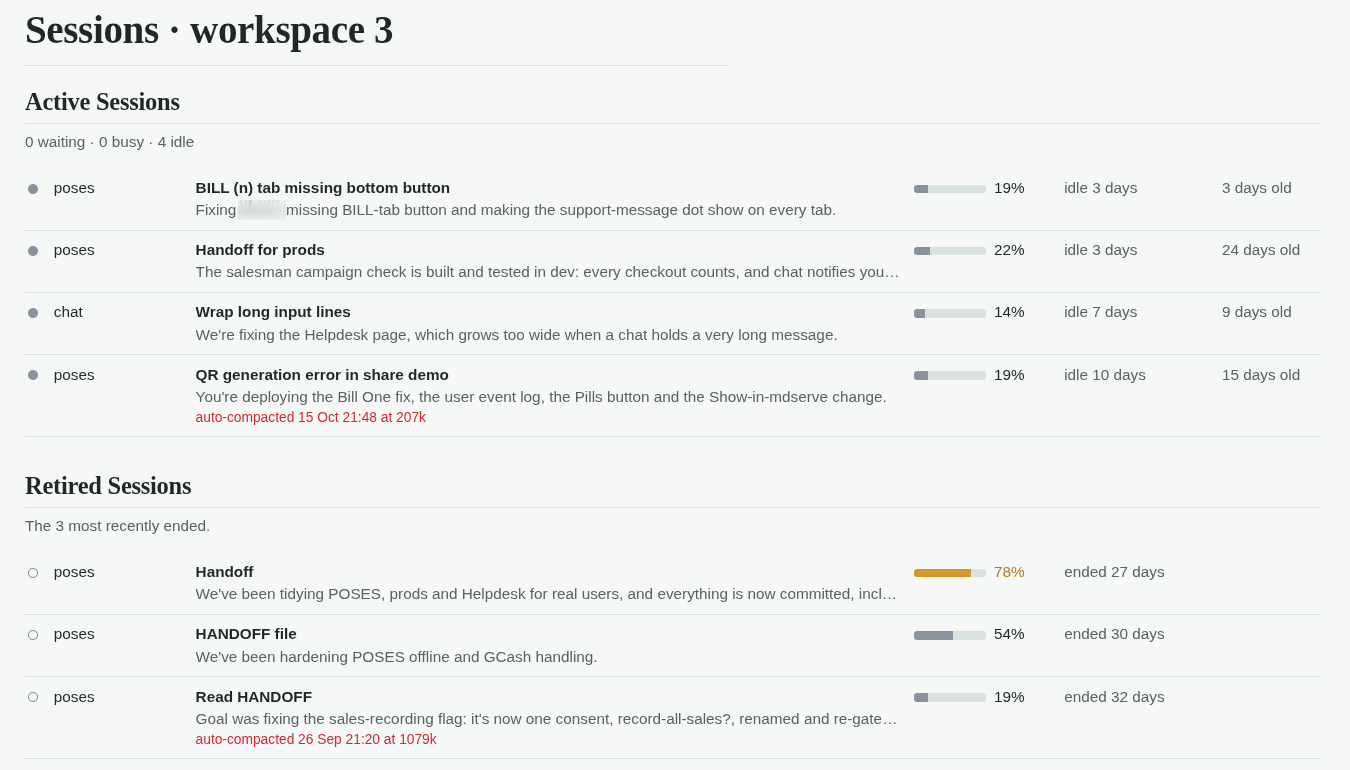
I often have more than a dozen CC sessions open, each in a terminal tab on its project's workspace. The Sessions tab lists that workspace's sessions, one row each: its title, a line on what it's doing now, and how full its context is. Each row also shows whether the session is busy, idle or waiting for me.
More features, and your own Windows Explorer
The video on improving WMD showed "Refresh" for how much memory is in use, and "Remember Tabs", which saves the open tabs.
One rule Claude follows for me is to always make a backup before changing a markdown file. That makes a mess of backup files, which of course can be tidied up.
The next video shows the tidying up.
Watch: WMD's Explorer tidying up backups
Imagine having your own programmable version of Windows Explorer per workspace. You just saw that in the video above! There's always at least one of these tabs in each workspace. The video doesn't show it, but clicking a file opens a new tab that displays that type of file. Markdown files matter most, so they're listed with the most recently changed first.
Many of WMD's buttons don't do the work themselves. They run a small command from my ~/bin directory, the same command I could type at a shell prompt, or that CC can run for me. The "Flotsam" button in the video runs archive-flotsam, a script that moves backup files and screenshots into a timestamped archive folder. Most of the commands behind buttons are just a few lines of bash. A few buttons, such as the memory "Refresh" and "Remember Tabs", are built into WMD itself.
Fewer terminals
Working as a developer or a support person, you end up with terminals everywhere, some temporary and some running permanently, and they clutter your desktop. There are plenty of ways to organise them: tmux or its newer cousin Zellij, tiling window managers such as i3, and on macOS, iTerm2, or cmux, which is built for running several coding agents at once.
The terminals that cluttered my desktop were mostly long-running processes: web servers, build watchers and the like. Those now run in the background, each terminal having been replaced by a row of buttons ("Launch", "Stop" and "Log") on a dashboard tab, one at a time or a whole group at once. "Log" opens the output in another tab, which I close when I'm done. All I keep is one tabbed terminal window per workspace, for my CC sessions and the occasional one-off terminal session.
Tools like tmux and i3 arrange terminals, while WMD removes the need for them, and it solves two problems along the way. One is proximity: the controls sit on a tab in the same window as the docs, dashboards and logs I'm working with. The other is customisation. A general-purpose tool gives everyone the same thing, so it fits nobody exactly. Whereas every button on my dashboards is one I asked CC for, grouped the way I work.
Use runbooks
That occasional one-off terminal session I mentioned is often a runbook, often on another machine.
Some jobs need me, rather than CC, to type the commands, because they need my password or a console. For those, CC writes a runbook: a plain file of shell commands, with comments saying why each step is there. I press Ctrl-x n and the next step appears at my prompt, already typed, and nothing runs until I press Enter. No more copying commands out of the chat. The tool is called cmdq, and it's a gist you can install in a minute.
Each step's output is saved for CC to read back, and my place is saved too, so a job can span reboots. When the job is on another machine, CC copies the runbook there, and I log in and keep pressing Ctrl-x n. Each runbook is a dated file kept with its output, so there's a history of what ran on each machine.
Complex deployment
Buttons aren't only for small jobs. Our point-of-sale system (POSES) is five webapps (chat, till, prods, custs and pos) that run on one production server, and deploying them is a job with several steps. It now lives in WMD in a Deploy panel on the POSES dashboard tab, as five buttons in the order they're used:
- Plan compares what's live with the latest code (whether committed or not), app by app, and shows what a deploy would ship.
- Ship builds and uploads an uberjar for each changed app, stopping at the first failure.
- Release doesn't actually do anything! Instead, it prints the step for the human deployer to run on the server.
- Record checks that every app that was shipped is really live, and fails loudly if one isn't, which catches a step missed on the server. It then notes what went live, so the next Plan can work from that note instead of having to query the live server. It's also the only way Plan knows which version of the shared library is in production, because the server doesn't say.
- Confirm runs the plan again, read-only, and should find nothing left to deploy. Its log ends: "Confirm done. If every app above shows 'up-to-date', the deploy is complete." It then restarts the development build watchers that Ship had to stop.
Each step has a coloured dot showing whether it has run and how it went, and a "Log" button for its output.
Watch: A complex deployment from WMD
Five repos plus a shared library is a polyrepo, and polyrepos have a reputation: each extra repo is one more thing to start, keep in step and deploy. The POSES tab takes care of all three:
- Running them together. One page shows every app, each with its own Start, Stop, Restart and Log buttons, and "Start all" starts the lot. What each app needs, such as the database, is shown beside it, and shared services have their own row.
- One address. On my development machine, Caddy puts all the apps behind one address, the way the web server in production does. So development behaves like the real system, with the apps running side by side rather than on scattered ports.
- Deploying them. The Deploy panel works out, repo by repo, what needs shipping, and keeps track of which version of the shared library is live.
So I no longer hesitate to start a new repo.
Life hacks
The same habit works away from the desk. Five examples, and how each one works.
Reading on the couch. When I say "put it up on the tab", CC adds a document to a reading list, which a second, deliberately tiny web server shows on my tablet. That server can only show the list and the documents on it. WMD itself only listens on the machine's own internal address, so nothing on the LAN can reach it. The terminal and editor pages simply don't exist on the tablet's server, so nothing I add to WMD later can leak onto the network by accident. A web page can go on the list too; it's just a link to the real site.
The big screen. "Put it on the big screen" sends a page to the TV, where it waits for the next time I sit down to read. Behind that phrase is bigscreen, a small command on my desktop: give it a web address and the page goes to the TV. CC runs it when I ask, and I can type it myself too. The TV is really just an HDMI screen for a spare Linux machine, which I call the media machine. That beats a smart TV: the media machine is a normal computer, so it can run a web server and a fully controllable Chrome. A page on the TV is no use if you can't scroll it from the couch, so the media machine runs its own little web server, tvremote, and my phone is the remote control. In reading mode it scrolls the page up and down, makes the text bigger or smaller, reloads it, and plays the page's YouTube videos; the same remote also does Netflix. tvremote shows pages in a separate Chrome with its own profile, because Chrome won't let a program take control of your everyday one. It's on GitHub if you have a spare machine and a TV.
What makes tvremote work is the same trick WMD uses, but on two devices. In WMD, the page I click on and the browser being driven are one and the same: a button on the page asks WMD, and WMD drives that browser. With tvremote there are two browsers: the phone's browser, and Chrome on the media machine. One web server sits between them. When I press a button on the phone's browser, the press goes over the Wi-Fi to tvremote (the web server on the media machine). tvremote and that Chrome both run on the media machine, so tvremote can drive it directly. Thus a press goes from browser, to web server, to browser. In a way, Chrome on the media machine is acting as a web server too, taking commands from tvremote. The phone's browser has no power over the TV at all; it can only ask a web server that has. Any device on the LAN can be the remote, and bigscreen on my desktop is just one more of them.
Same thing again, this time stated technically. Chrome on the media machine is started with its own profile and Chrome's remote-debugging switch. Started that way, Chrome listens for commands on a port of its own. The commands it listens for are the Chrome DevTools Protocol. The port is on localhost only, so no other machine on the LAN (the phone included) can reach Chrome. Each button on the phone's browser calls an endpoint on tvremote over HTTP. tvremote asks Chrome's port for the list of tabs, also over HTTP. Then it opens a WebSocket to the right tab and sends one command. The command runs a line of JavaScript to scroll or resize the text, presses a key for play and pause, or opens an address. A web server cannot command a browser on its own. Chrome only takes commands because it was started with that switch, and the WebSocket is simply what the DevTools Protocol uses to carry them.
Email and messages. When I need an email written, CC drafts it straight into Gmail and leaves it open on my screen: a new message, or a reply at the end of the correct thread. Slack messages work the same way. There's no email integration behind this. Gmail and Slack are just tabs in WMD's browser, already logged in, and CC works inside them through the Chrome DevTools Protocol, the same remote control WMD uses to open its windows.
Shopping. Online shopping works again. Shops such as Lazada and Shopee turn away bots. A bot is easy to spot. Programs such as curl and wget give their own name in every request. They don't run the page's JavaScript, and they don't keep its cookies. CC's own web-fetch tool looks much the same, so the shop sends back an empty page or a block page. But WMD's browser is a real Chrome. So CC opens a temporary tab there, reads the listings, compares prices and closes the tab. To the shop, it is just me browsing.
Errands. My second favourite (behind the TV remote): I needed an official photo from one of several local photo shops. CC made me a one-page guide with the questions to ask and the spec, and the shops in order, each with a button that opened Google Maps to it. As I rode from shop to shop, the next one was always a tap away. This one couldn't be served from home: my web servers there reach only my own machine and my LAN, and out on the bike my phone was on mobile data. So CC published it on the web server I rent on the internet, the one that hosts this blog, as a temporary page under my own domain. That's a single command for CC, and the page needs no login to read.
Try this tomorrow
You don't need WMD to start. Each of these is something to say to your own coding agent, and each one stands alone.
- "Don't give me long answers here. Write them to a markdown file and open it in my browser." This is where WMD started, and it needs no web server at all.
- "Always back up a file before you change it." It's one line in your agent's rules file, and you never lose a version again.
- "Run falsifier on this." falsifier is a skill (a file of instructions your agent loads) that checks a spec, a request or code for contradictions, hidden rules and wrong assumptions, and reports a short ranked list of what to fix.
- "Give me commands to run as a runbook." That means a file, not a list in the chat. To step through it, cmdq is the Ctrl-x n tool from the runbooks section. No need to type in commands, or copy and paste them, ever again.
- Want more than markdown in the browser? with-my-dashboards-starter is the generic core of WMD, ready to build your own on.
- Got a spare machine and a TV? tvremote is the phone remote from The big screen, above. Install it on the spare machine, open its page on your phone, and you have Netflix, YouTube and reading on the TV. Reading is for pages your agent sends: its
bigscreencommand puts a page on the TV, and you scroll it from the couch with your phone.
Conclusion
AI, or rather the software it can build quickly, has finally let me get rid of most of the friction involved in controlling computers.
Imagine arriving for work at a new job, as a developer or a production support person, and being told to run one thing from the command line. Up comes everything that role needs: the dashboards, the logs, the runbooks, the documents, each in its place. Each role could have its own WMD. A turnkey introduction to a job, long desired, is finally practical.
The next stage is, of course, doing some of these things in a loop, without a person driving each step. That's already happening in software development: agents make several attempts, and the best are kept. Two products now arriving work like this. Both take an evolutionary approach.
samizdat is an agentic harness for Clojure that splits larger tasks among several agents, and each sub-agent gets a contract plus tests as its spec. Several attempts can run side by side, and the winner is chosen by ranking each attempt on checked evidence. The loop itself is a state machine written as data, and the agent can rewrite it while it runs, behind a validate-and-rollback gate.
simmis is a self-hosted app where people and agents share one memory, including the code repository, and its central idea is cheap forking. Every change an agent makes to shared knowledge, documents or the code lands on its own copy-on-write branch, so agents can make several attempts at the same thing side by side. Whoever holds merge authority, a person or another agent, reviews the differences and merges the ones worth keeping. That's what makes it safer to let agents work on software in a loop. Two things stay off the branches: chat, where people and agents talk and the work gets asked for, and actions with outside effects, such as sending an email, which a branch can't undo. simmis is an early public release; the overview and roadmap are at simm.is.
Waterfall plans everything up front, then builds; agile builds in small steps and changes course as it learns. Waterfall's weakness is going back up: once building starts, changing the spec is expensive. The evolutionary approach allows both, and removes that weakness. Each attempt can start from a spec, as in a waterfall, and what the attempts reveal goes back into the spec before the next round, as in agile. samizdat gives each sub-agent a contract and tests as its spec and ranks the attempts on evidence; in simmis, attempts sit on forks until a person or agent with merge authority keeps the good ones. And when the code takes hours rather than months, going back up is cheap.
Glossary
- Agentic harness: software that runs AI agents in a loop, handing them tasks, checking their work and feeding back results, so they can keep working without a person driving each step.
- Agile: a way of running software projects in short steps, each one delivering something that works, so the plan can change as you learn. It largely replaced the waterfall.
- Babashka: a fast-starting way to run Clojure as everyday scripts, the kind of small programs you'd otherwise write in a shell language. babashka.org
- Bot: a program that visits websites with no person behind it. Search engines use bots to index the web, and others copy prices or content. Many shops block them.
- Caddy: a web server that is easy to set up. Here it acts as a single front door that passes each request on to the right app. caddyserver.com
- Chrome DevTools Protocol: the remote control built into Chrome. Developer tools, and programs like WMD, use it to open tabs, read pages and click on them.
- Clojure / ClojureScript: a programming language from the Lisp family, popular for working with data. ClojureScript is the same language compiled to run in the browser.
- Context: everything an AI model can see at once in a conversation: the messages so far, and the files and results it has read. It has a fixed size. When it fills up, CC squeezes the older part into a summary, and details get lost.
- Copy-on-write branch: a cheap copy of some data that only stores what changes. It can be kept, merged back or thrown away without touching the original.
- curl: a small command-line program that sends a single web request, the way a browser would but without the window.
- Dashboard: a tab that WMD serves itself, as opposed to an outside site such as Gmail. It shows what is going on, and many also have buttons that act, such as starting a server. A few general ones come with WMD's generic core on GitHub; most are my own, built for one project or for my control workspace.
- EDN: Clojure's format for data files, a cousin of JSON. edn-format
- Endpoint: one address on a web server that does one job, such as "scroll down". A button on a web page is often just a call to an endpoint.
- HTTP: the language browsers and web servers use to talk to each other.
- LAN: the network inside your home or office, usually just your Wi-Fi, which links your own devices to each other. Devices out on the internet can't reach in.
- Localhost: a machine talking to itself. A web server listening only on localhost can't be reached by anything else, even on the same home network.
- Markdown: plain text with a few simple marks for formatting, like
#for a heading and*for emphasis. Easy to write, and easy to turn into a web page. - Polyrepo: a project whose code is split across several repositories, often one per app. The opposite is a monorepo, where everything lives in one repository. People often say monolith and microservices for this, but those words are about how the running software is split up, not how its code is stored. POSES is both: several separate apps, each in its own repository.
- REPL: a live session inside a running program, where you can type code and see the result at once, reading and changing the program while it runs. Epupp puts a Clojure REPL into a live browser tab, so an agent can see what the page actually drew, not just the HTML it was sent, and even change the page until a reload puts it back. clojure.org
- Spec: the written specification, a precise description of what software must do, written before the code.
- Terminal (terminal tab): one text window where you type commands to the computer, instead of clicking. In a terminal program each one is a tab, separate from the browser's tabs.
- Terminal program (tabbed terminal window): the program that holds your terminals, as tabs in one window. Mine is Ptyxis; others are GNOME Terminal and Konsole on Linux, Terminal and iTerm2 on macOS, and Windows Terminal.
- tmux: a program that keeps terminal sessions running in the background and lets you split one terminal window into several. Zellij does the same job, and is easier to learn.
- Uberjar: a single file that packages a Java or Clojure program with everything it needs, ready to run on a server.
- Waterfall: the old way of running software projects, in strict stages: write the whole specification first, then design, then build, then test, with little going back. It fell out of favour because mistakes in the spec were found late and were expensive to fix.
- Webapp: an application you use in a web browser. The part you see and click runs in the browser itself, and it talks to a web server that stores the data and does the heavy work.
- WebSocket: a connection between two programs (often a web page and a web server) that stays open, so either side can send a message at any time instead of one request and one reply.
- wget: a command-line program that downloads a web page or a file, much like curl. Like curl, it gives its own name in each request, so a site can tell it from a browser.
- Workspace: a whole separate desktop with its own windows, switched with a keystroke. Windows calls them virtual desktops, and macOS calls them Spaces.
Comments or questions? Email me at (turn on JavaScript to see my address).
Published: 2026-10-08